Importing Bank Statements
Note
Make sure that the Bank Statements tab is displayed (see Adapting Navigation Bar), and that the button Import Files is available on the Bank Statement list view (see Enabling Bank Statement Import).
You can import end-of-day statement files (CAMT.053 format) received directly from your bank – outside the EBICS channel. These files can be individual XML files or bundled in compressed ZIP archives, which you can either upload locally or fetch from a dedicated library in Salesforce Files (if set up accordingly).
- Open the Bank Statements tab.
-
Click Import Files.
This displays the Import Bank Statement Files dialog.
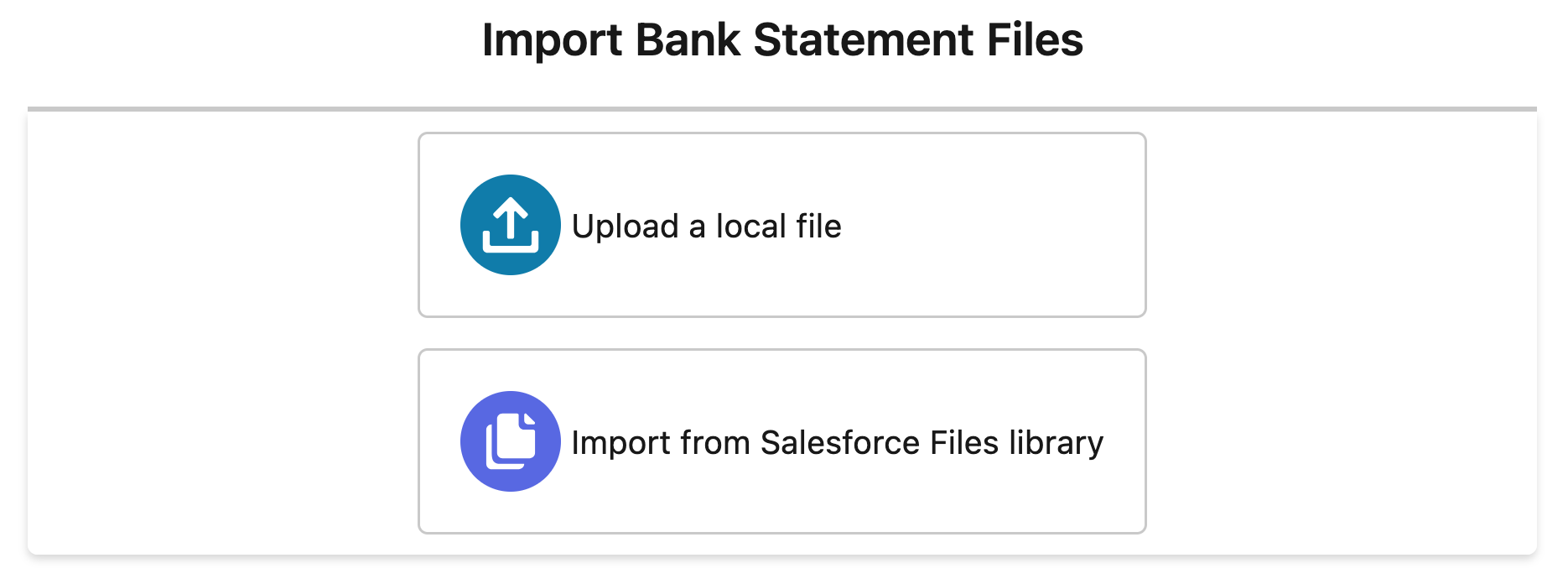
Selecting bank statement import channel -
Select the relevant import channel.
Click either Upload a local file or Import from Salesforce Files library.
-
Select the relevant file (XML or ZIP).
There are two options to do so:
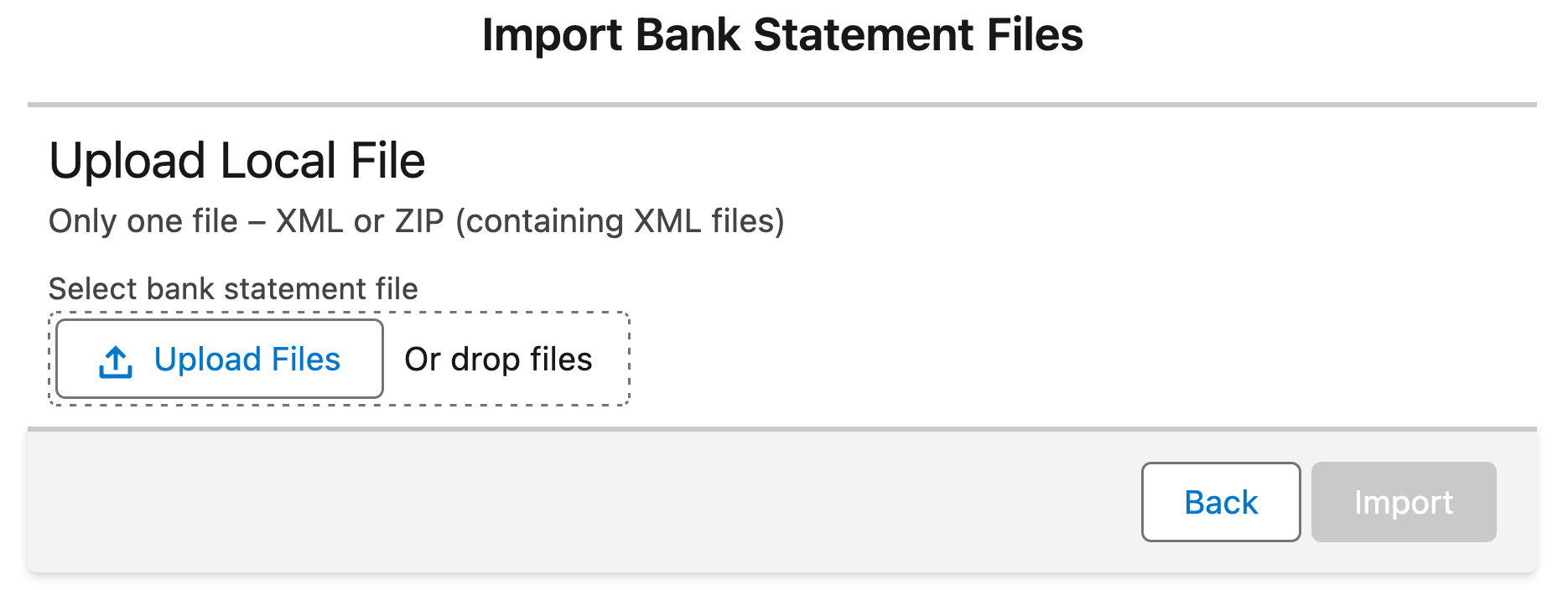
- Clicking Upload Files opens your browser's file selection dialog. Use it to select the file you want to upload.
- The Drop files area allows you to drag and drop the file you want to upload.
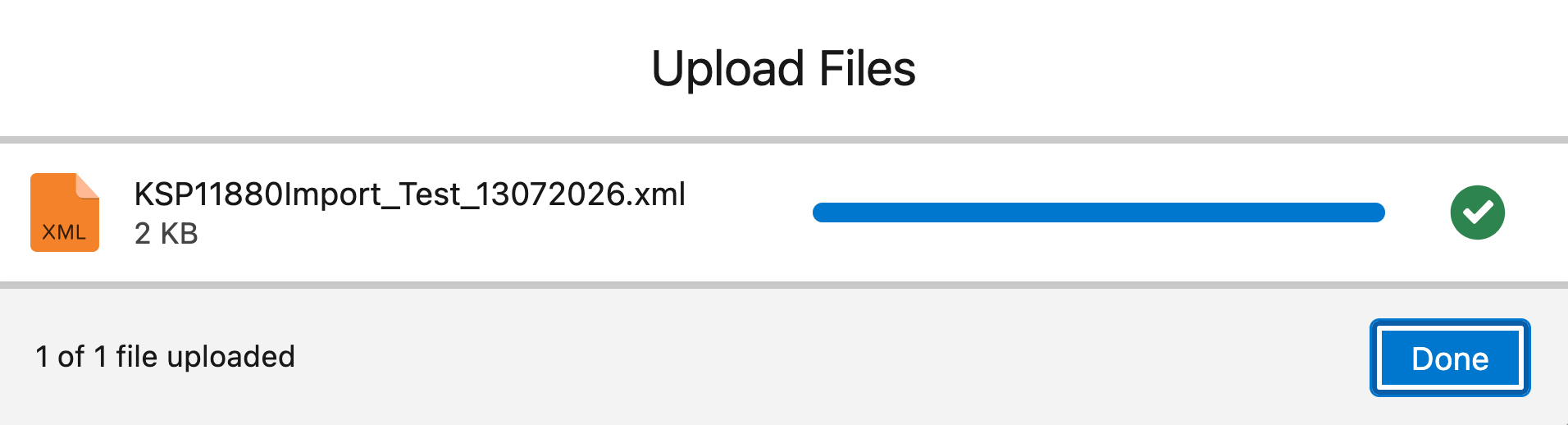
This displays the Upload Files dialog.
-
Click Done to complete the file upload.
This uploads the selected file to Salesforce. The Import Bank Statement Files dialog shows the uploaded file.
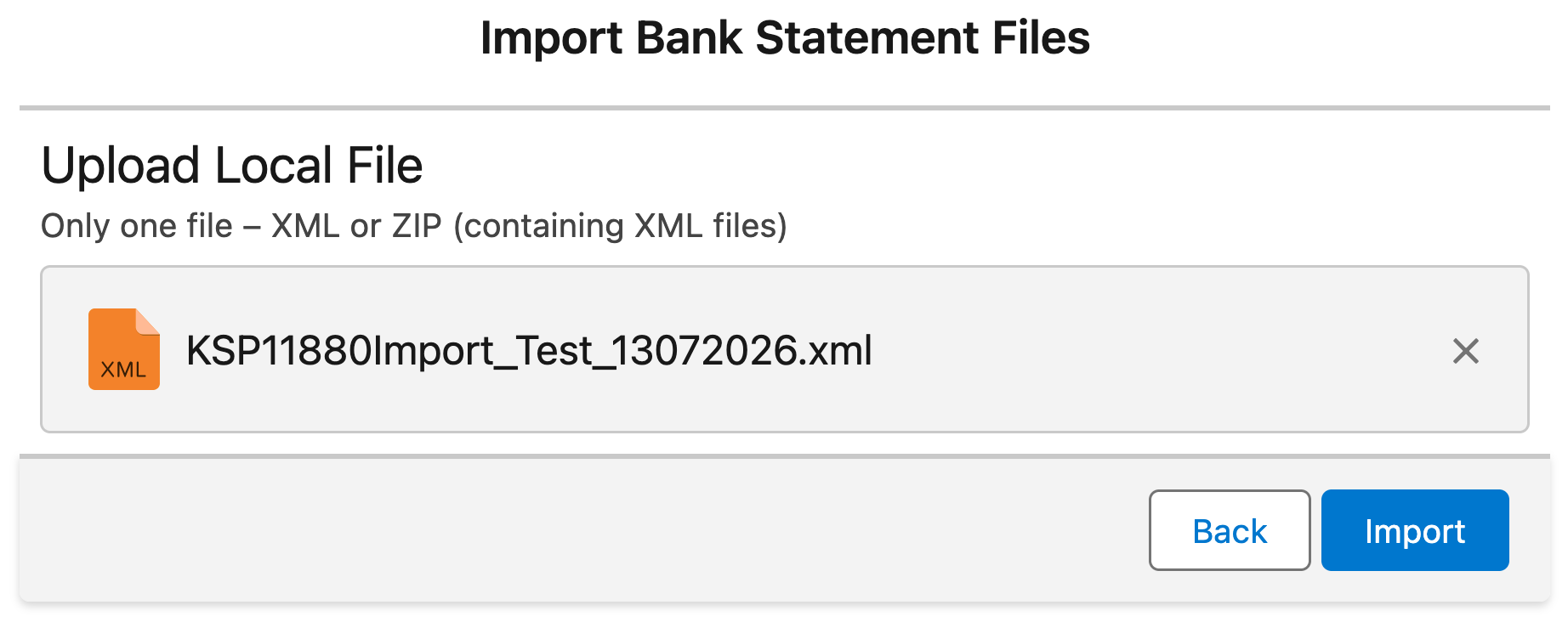
This displays the files that are eligible for the bank statement import (XML and ZIP).

Files that are too large are highlighted in red. These files will be ignored. Otherwise, JustOn Cash Management will process all eligible files (XML and ZIP) in the library. If a file's content is invalid, a corresponding message is displayed in the dialog.
-
-
Click Import.
This imports the CAMT.053 files, creating bank statements and bank statement items.
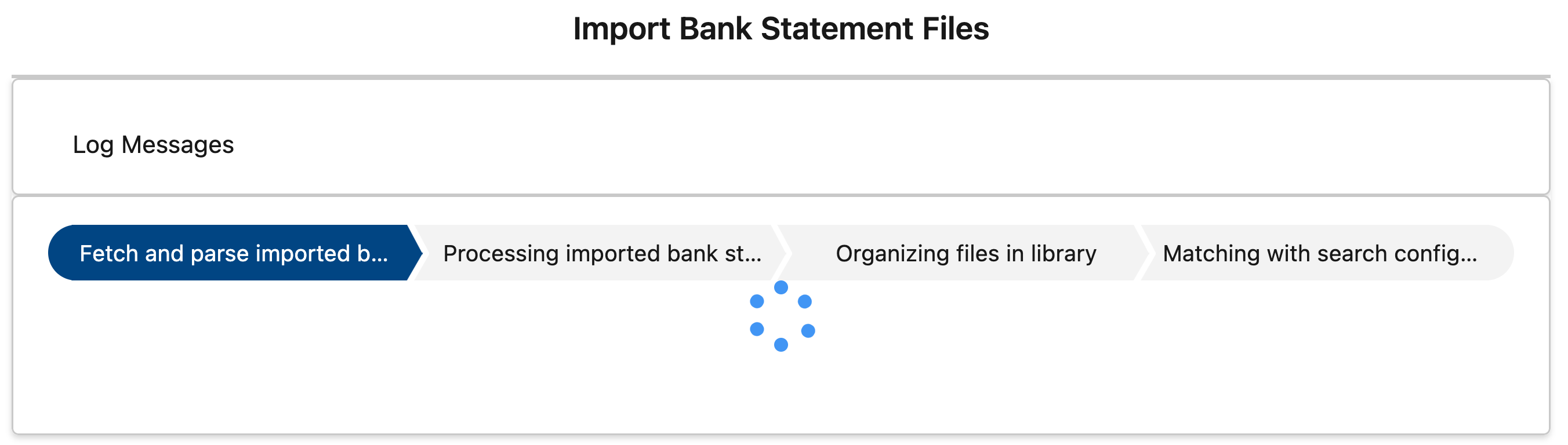
Bank statement import progressAs part of the process, JustOn Cash Management automatically associates
- existing payment records (as related to entries) and refund records with matching bank statement items (from the original bank account and according to the end-to-end ID), or
- retrieved bank statement items (and corresponding new payment records) with matching entries through data comparison based on active matching configurations.
-
Click Log Messages to review the import result.
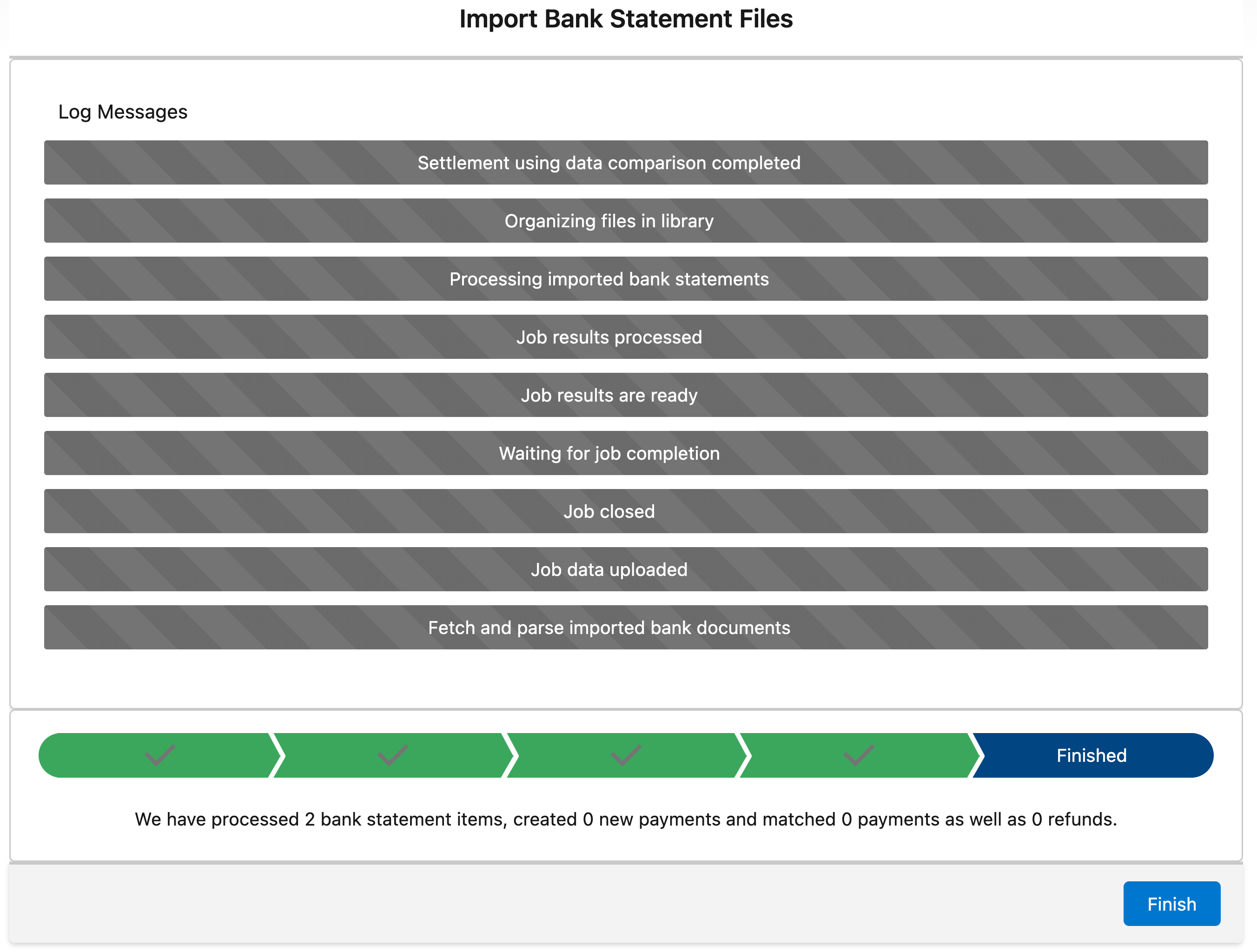
Bank statement import resultClicking Finish returns you to the start page of the Import Bank Statement Files dialog.
-
Review the matching and settlement results.
For details, see Reviewing Automatic Settlement Results.