Setting Up Subscription Metrics
To set up subscription metrics, configure the components described below. For conceptual background, refer to KPI Metrics.
Subscription Metrics
Subscription metrics track changes to recurring or transactional items, like creation, termination, price/quantity modifications, to display the recurring revenue or growth/churn rates for individual subscriptions on a monthly basis, producing MRR values. Subscription metrics are related to the account and the subscription.
The main component is the Subscription Metric object. It holds the following information:
Subscription metric data model
| Field | Description |
|---|---|
| Account | The related account (secondary master-detail); the metric record is deleted when the account is deleted. |
| Actual | The actual amount of this metricPrevious + Initial + Change |
| Change | The change of the MRR based on the previous MRR. |
| Churn Rate (Gross) | The gross churn rate is the ratio between Churn and Actual.IF(Actual=0,1,Churn/Actual) |
| Churn Rate (Net) | The net churn rate is the ratio between Change and Actual.IF(Actual=0,1,Change/Actual) |
| Churn | The absolute churn if the change is negative.IF(Change < 0,ABS(Change),null) |
| Date | The effective date of this metric, depends on the kind of change (add/subtract) and the service period/next invoice date of the item. |
| Expansion | The absolute expansion if the change is positive.IF(Change > 0,Change,null) |
| Growth Rate | The growth rate is the ratio between Change and Previous.IF(Previous=0,null,Change/Previous) |
| Initial | Holds the initial MRR value. Only filled if the change date equals the start date of the first subscription. |
| Is Latest (checkbox) | Marks the latest metric record for a particular item criterion. |
| Item Criterion | The criterion shows which items have been aggregated to this metric. |
| Items | The names of the related items that caused the current change. |
| Next Metric | Links to the next metric record, which supersedes the current record. |
| Previous Metric | Links to the previous metric record, which is superseded by the current record. |
| Previous | Holds the MRR value of the previous metric record. |
| Retention Rate | The opposite of the gross churn rate. The sum of the two is always 100%.1-ChurnRateGross |
| Smooth Change | The smooth change formula allows to report two consecutive metrics (within two days) as one (like -50 and +70 is reported as +20) |
| Subscription | The related subscription (primary master-detail); the metric record is deleted when the subscription is deleted. |
In addition, you can define summary fields on the subscription in order to calculate future MRR values. For details, see Creating Additional Subscription and Item Fields.
Subscription metric generation
Generally, the account metric generation and the subscription metric generation are nearly identical. They use the same subscriptions and items as input and follow the same rules that trigger the metric creation.
The difference is:
- Metric data for subscription metrics is aggregated on subscription basis.
- Metric data for account metrics is aggregated on account basis, that is, for all subscriptions of an account.
The decision whether to create subscription metrics or account metrics is controlled via the global setting Subscription Metrics Scope.
If Subscription Metrics Scope is not set, JustOn creates subscription metrics by default.
Generally, the following item actions produce new or changed metric records:
- Creating a recurring item
- Creating a transactional item with expected revenue
-
Ending a subscription or item using an end date
You can set the end date retroactively within one month to trigger the end metric creation.
-
Deactivating an item
- Changing the price/quantity of an item
To actually create or update subscription metric records, you can either schedule the subscription metric builder job (which is the preferred option), create a custom flow, or enable users to update a single subscription metric manually.
Workflow details
Subscription metric records and account metric records are created on subscription or item change if the following conditions are met:
- Subscription
-
-
Status is not set to
DraftThat is, subscriptions with the statuses
Active,Inactive,CanceledorUpgraded(or any custom status) are subject to the metric generation.
-
- Recurring item
-
- Billing type is
Recurring,Recurring ProratedorRecurring Prorated AVG - Item is created
- Quantity or price is changed
-
Item is deactivated
Items that are inactive already are not subject to the metrics generation.
-
End date is set
Items whose end date had already passed are not subject to the metrics generation.
- Billing type is
- Transactional item
-
- Billing type is not
Recurring,Recurring Prorated,Recurring Prorated AVGorOne-Time - Item is created
- Expected revenue is changed
-
Item is deactivated
Items that are inactive already are not subject to the metrics generation.
-
End date is set
Items whose end date had already passed are not subject to the metrics generation.
- Billing type is not
Changing the start date or deleting an item does not trigger the metrics generation. To cover start date modifications, you deactivate the original item and create a new one with the new start date. To cover an item removal, you deactivate the item.
In addition, the following rules apply:
- Each change results in a new metric record that is linked to the previous record.
- If the change date equals the start date of the first subscription, the field
Initialis set. - Subsequent metric records have filled the fields
PreviousandChange. - The first record is set to the start date of the item or subscription.
-
As of v2.84, the global settings option
Ignore Invoices for MRR Metricsdecides whether subsequent metric records are set to the item's next invoice date or start from the original start date. If activated, item price or quantity changes update MRR metrics starting from the relevant start date, irrespective of the item's next invoice date. This way, it is possible to decouple the metrics creation from existing invoices.With new v2.84 installations, this option is activated by default. When upgrading from previous versions, this option is not selected, which keeps the previous behavior of using the item's next invoice date for subsequent metric records.
If you use the option
Ignore Invoices for MRR Metrics, JustOn strongly recommends to deactivate the original item and create a new one with the new price or quantity instead of just modifying the values. This makes sure that the produced metrics represent the effective values throughout the covered period. -
A final metric record for an item is created only if the end date of the item is actually reached (that is, if the end date equals the current date or a previous date), or if the subscription is canceled.
- The final metric record is set to the day after the end date of the item.
- Metrics are continued from upgraded subscriptions (related via the subscription field
Previous Subscription).
Subscription metrics generation examples
- Single subscription
-
The following example illustrates the subscription metric generation on a basic level, that is, without applying criteria. This produces a single metric chain.
There is a subscription with the start date set to 2019-01-01 and the following items:

Start and end dates trigger subscription metric record creationBased on the given subscription items, the subscription metric builder job produces these metric records:
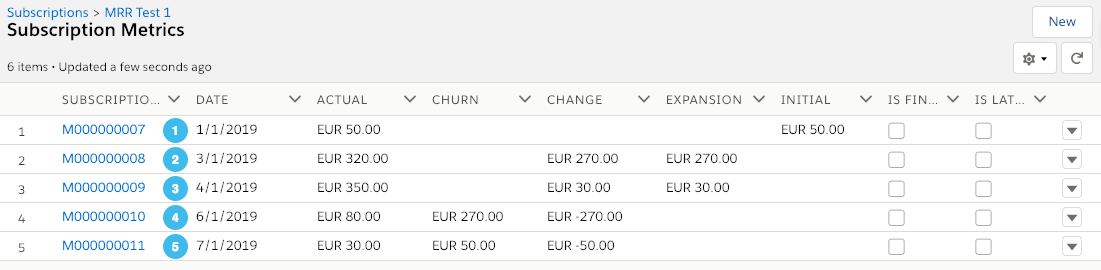
Produced subscription metric records# Event Modification 1 REC1 start date 50,00initial MRR value50,00actual amount2 REC2 start date 270,00(positive) change270,00expansion value320,00actual amount3 REC3 start date 30,00(positive) change30,00expansion value350,00actual amount4 REC2 end date -270,00(negative) change270,00churn value80,00actual amount5 REC1 end date -50,00(negative) change50,00churn value30,00actual amountIf there are end dates set for items, JustOn produces the corresponding end metrics.
- Subscription cancellation
-
Now assume you cancel the subscription before an item end date is reached. This forces JustOn to generate one end metric record for the current metric chain that includes all items, irrespective of their end date settings.
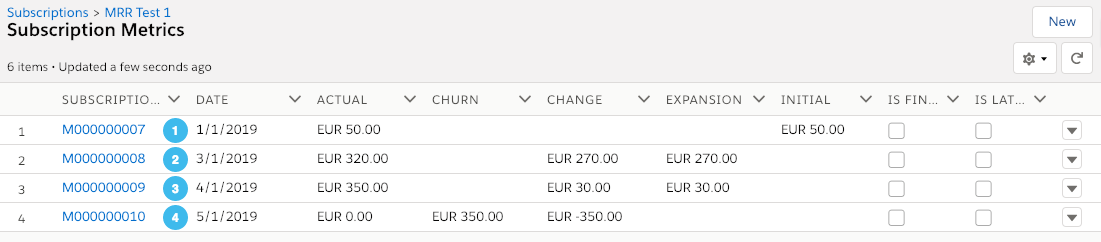
Produced subscription metric records after cancelling the subscription# Event Modification 1 REC1 start date 50,00initial MRR value50,00actual amount2 REC2 start date 270,00(positive) change270,00expansion value320,00actual amount3 REC3 start date 30,00(positive) change30,00expansion value350,00actual amount4 subscription end date -350,00(negative) change350,00churn value0,00actual amount - Subscription upgrade
-
Let us consider a subscription upgrade: There is a subscription with one item of 100 Euros, then you upgrade this subscription, raising the item's price to 125 Euros. There will be two subscriptions with their metric records. But because they all originate from the same item, the metric records will be aggregated in one metric chain, which allows for tracking the MRR for the item.

Produced subscription metric records of one subscription after upgrading it
Produced subscription metric records of the second subscription# Event Modification 1 item start on subscription 1 100,00initial MRR value100,00actual amount2 subscription 1 end -100,00(negative) change100,00churn value0,00actual amount3 item modification on subscription 2 125,00(positive) change25,00smooth change (= combined previous-100,00change and current125,00change)125,00expansion value125,00actual amount
Setting up the Subscription Metric object and related functionality involves
- Configuring subscription metric permissions
- Enabling subscription metrics creation
- Creating additional subscription and item fields
- Optionally, enabling subscription metric list display
- Scheduling subscription metric generation
- Optionally, enabling additional subscription metric information for the metric records
Once set up, you can use Business Reports to display the resulting metrics in easy-to-understand formats, including graphs.
Configuring Subscription Metric Permissions
Because of the master-detail relationship with the account, you must manually configure the access to the Subscription Metric object.
-
Create a new permission set.
For details, see Create Permission Sets in the Salesforce Help.
-
Assign Read, Create and Edit permissions for the Subscription Metric object to the new permission set.
For details, see Edit Object Permissions in Profiles in the Salesforce Help.
Info
Field access is already assigned via the permission set JustOn Read/Write and is not required to be configured specifically.
Enabling Subscription Metrics Creation
The global settings field Subscription Metrics Scope contains a comma-separated list of strings that controls which metrics data is produced. The possible values include:
| Value | Result |
|---|---|
Subscription |
Create subscription metrics data |
Account |
Create account metrics data |
Subscription, Account |
Create both subscription metrics and account metrics data |
If Subscription Metrics Scope is not set, JustOn falls back to Subscription and creates subscription metrics by default.
- Click to enter Setup, then navigate to Custom Code > Custom Settings.
- Click Manage in the row of Global Settings.
- Click Edit in the Default row.
-
In the field
Subscription Metrics Scope, specify the intended scope.The value can be one of
Subscription,AccountorSubscription, Account. -
Click Save.
Recreating Subscription Metrics
Some business uses cases require to create new subscription metrics from scratch. To do so, proceed as follows:
-
Delete all existing subscription and account metrics records.
The individual subscription metric records are accessible via the corresponding related list on the subscription detail page if set up accordingly.
-
Clear the following fields on all items and – when using price tier groups – on all tiers (
Price__c):Previous Start MetricPrevious End MetricPrevious End Date
-
Execute the subscription metric builder job.
For details, see Scheduling Subscription Metric Generation.
This forces JustOn to create new subscription metrics based on the current subscriptions and items.
Creating Additional Subscription and Item Fields
Subscription
Optionally, you can set up summary fields on the subscription in order to report future MRR values. The summary fields are not shipped with JustOn, but you can easily create them.
| Label | API Name | Data Type | Description |
|---|---|---|---|
| Current MRR | MRR_0m__c | Currency | Shows the current MRR (based on the MRR job execution date). |
| MRR in One Year | MRR_12m__c | Currency | Shows the MRR in one year (based on the MRR job execution date), taking account of the subscription end date. |
| MRR in Three Years | MRR_36m__c | Currency | Shows the MRR in three years (based on the MRR job execution date), taking account of the subscription end date. |
| Expected MRR in One Year | MRR_12m_f__c | Currency | Shows the expected (future contracted) MRR in one year (based on the MRR job execution date), ignoring the subscription end date if auto-renewal is enabled. |
| Expected MRR in Three Years | MRR_36m_f__c | Currency | Shows the expected (future contracted) MRR in three years (based on the MRR job execution date), ignoring the subscription end date if auto-renewal is enabled. |
Info
The future contracted MRR fields show the expected revenue based on the condition that auto-renewal is enabled for the current subscription. In this case, JustOn ignores the subscription end date, providing an optimistic forecast.
If there is no auto-renewal defined, these fields act like the other MRR fields and show the same result. That is, they take account of the subscription end date, providing a realistic forecast.
JustOn supports price tier groups for future MRR values. If there are price tier groups for an item, JustOn uses the price of the price tier group that is valid for the future date. If there is no valid price tier group available for the future date, JustOn sets the future MRR value to 0.
JustOn does not consider multiple prices per price tier group but always uses the price of the first tier for future MRR values.
The MRR summary fields are refreshed when the MRR job is executed.
The summary fields must be of the data type Currency. The API name must use the pattern MRR_Zm__c or MRR_Zm_f__c, where
Zis a positive number that represents months, likeMRR_0m__c,MRR_12m__cfindicates that the field considers future contracted MRRs
The subscription field Last MRR Update holds the date on which the MRR fields were last calculated.
- Navigate to the fields list of the Subscription object.
-
Create the MRR summary fields as required.
For help about creating fields, see Managing Object Fields.
-
Allow the users who execute the MRR job write access to the MRR summary fields either by adding them to their assigned profiles or permission sets.
For details, see Set Field Permissions in Permission Sets and Profiles in the Salesforce Help.
Item
By default, JustOn aggregates all items of a subscription to one metric chain. In order to separate items based on a criterion (for example, product group), you create an additional criterion field on the item. Depending on your requirements, the field can be a formula or a writable field to be filled on subscription building. The API name of the field must be MRRCriterion__c.
Consider the following use case: You want to separate metrics by the product group as set for the item. To this end, configure the MRR criterion field as a formula and set the following content: ONB2__ProductGroup__c. As a result, each product group has its own metric chain, and the metric field Item Criterion specifies the product group.
- Navigate to the fields list of the Item object.
-
Create the MRR criterion field as required.
Label API Name Data Type MRR Criterion MRRCriterion__c Formula (Text)
TextFor help about creating fields, see Managing Object Fields.
-
Allow the users who execute the MRR job read access to the
Item Criterionfield either by adding it to their assigned profiles or permission sets.For details, see Set Field Permissions in Permission Sets and Profiles in the Salesforce Help.
Info
Make sure that the user who executes the MRR job has read access to the Item Criterion field.
Enabling Subscription Metric List Display
Optionally, you can enable the display of related subscription metrics on the subscription page using Salesforce's related list functionality (see Work with Related Lists on Records in the Salesforce Help).
- Navigate to the object management settings of the Subscription object.
- Click Page Layouts.
- In the Subscription Layout row, click Edit.
- Select the Related Lists palette.
- Drag the Subscription Metrics list to the Related Lists section.
- Click Save to save the modified page layout.
For help about modifying page layouts, see Managing Pages.
Enabling Subscription Metric Generation
To create or update subscription metric records, you can
- schedule the subscription metric builder job (which is the preferred option),
- create a custom flow, or
- enable the Update Metrics button to allow users to manually start the metrics creation.
Scheduling Subscription Metric Generation
The preferred way to create or update subscription metric records is to schedule the subscription metric builder job.
Note
The subscription metric builder job is available as of JustOn 2.55. Up to JustOn 2.54, subscription metrics were created by two processes that ran on subscriptions and items.
If you have updated JustOn from an earlier version, you must remove the processes and the created records, and use the job to generate new subscription metric records.
The subscription metric builder job does not require additional parameters. That is, you can set up the job directly for the corresponding Apex class BatchSubscriptionMetricBuilderJob. For details, see Scheduling Concepts.
To schedule the subscription metric builder job, you can use either JustOn's Scheduled Jobs page or Salesforce's Schedule Apex functionality. For details, see Scheduling a Job.
Via JustOn's Scheduled Jobs page:
-
Open the Scheduled Jobs page.
Use the following URL
https://login.salesforce.com/apex/ONB2__JobsSetup, or, if you are already logged in, appendapex/ONB2__JobsSetupto your org's domain name.You can access the Scheduled Jobs page via the JustOn configuration app ( > JustOn Configuration > Jobs Setup).
-
From the
Apex Jobdrop-down list, selectSubscription Metric Builder Job.The
Job Namefield is automatically set toBatchSubscriptionMetricBuilderJob. -
From the
Start Timedrop-down list, select the preferred execution time. - Optionally, edit the displayed cron expression to adjust the execution time.
-
Click Schedule.
This sets up the subscription metric generation to be executed at the specified time.
Info
From the Scheduled Jobs page, you can also run the job immediately.
Via Salesforce's Schedule Apex functionality:
- Click to enter Setup, then navigate to Custom Code > Apex Classes.
- Click Schedule Apex on top of the list.
-
Specify the details as required.
- Job Name
- Apex Class:
BatchSubscriptionMetricBuilderJob - Frequency:
WeeklyorMonthly(with an according weekday or day of month setting) - Start
- End
- Preferred Start Time
-
Click Save.
This sets up the subscription metric generation to be executed at the specified time.
For more details about job scheduling, see Scheduling a Job in the JustOn documentation and Schedule Apex in the Salesforce Help.
Creating Subscription Metric Generation Flow
It is possible to update or create the subscription metrics for a single subscription using a custom flow, which calls the Apex action BuildSingleMetricInvocable to trigger the metric generation. The Action requires the subscription ID as input parameter.
Note
Depending on your use cases, the flow setup and the objects to involve will vary.
Be aware, in addition, of the following specifics:
- For the flow to create or update subscription metrics for a single subscription, the global settings field
Subscription Metrics Scopemust not includeAccount(see Enabling Subscription Metrics Creation). Otherwise, the flow will not create or update subscription metrics but show an exception. - If the related account is excluded from the metric creation or update – the checkbox
CreateMRRMetricsis not selected (setfalse, see Enabling MRR Metrics on Account or Subscription Basis) –, the flow will not create or update subscription metrics. If, however, the subscription is excluded from the metric creation or update usingCreateMRRMetricsbut the account is not, the flow will create or update subscription metrics.
- Click to enter Setup, then navigate to Process Automation > Flows.
- Click New Flow.
- Select
Record-Triggered Flowand click Create. -
Configure the Start element.
Option Description Object The object whose record modifications are to update a source record, usually SubscriptionorItemTrigger The type of record change that triggers the flow, like A record is updatedConditions The use case-specific trigger conditions, one or more filter criteria for evaluating certain field values or a formula for evaluating records Optimize for Actions and Related Records -
Click and add the following Action element.
Option Description Action The Apex class to call, must be BuildSingleMetricInvocableInput Values Invocable variables for the Apex class
Subscription Id: specifies the reference to the ID field of the subscription for which to create subscription metricsSpecify a label and an API name as required.
-
Click Save.
Specify a label and an API name as required.
-
Click Activate.
When the defined conditions are met, JustOn Billing & Invoice Management triggers the flow and creates or updates subscription metrics for the relevant subscription.
For help about creating flows, see Flows in the Salesforce Help.
Note
Be aware that the Apex class BuildSingleMetricInvocable calls the subscription metric builder job, which triggers the asynchronous generation of subscription metrics. That is, it may take some seconds until the new metrics are built after the flow has finished.
Example use case: Update subscription metrics on price or quantity changes
You can, for example, trigger the subscription metrics creation flow when you change the price or quantity of a subscription item.
To this end, you set up the flow as follows:
| Flow Element | Option | Value |
|---|---|---|
| Start | Object | Item |
| Trigger | A record is updated |
|
| Conditions | Any Condition Is Met (OR)1: ONB2__Price__c Is changed {!$GlobalConstant.True}2: ONB2__Quantity__c Is changed {!$GlobalConstant.True} |
|
| Action | Action | BuildSingleMetricInvocable |
| Input Values | The ID of the subscription or account: {!$Record.ONB2__Subscription__r.Id} |
This triggers JustOn to execute the flow when the Price or Quantity fields of a related subscription item are changed.
Enabling Subscription Metric Generation Button
Certain business use cases may require users to create or update subscription metrics for a single subscription manually. To support this, you can add the button Update Metrics to the Subscription page layout.
Note
Be aware of the following specifics:
- For users to create or update subscription metrics for a single subscription, the global settings field
Subscription Metrics Scopemust not includeAccount(see Enabling Subscription Metrics Creation). Otherwise, the operation will not create or update subscription metrics but show an exception. - If the related account is excluded from the metric creation or update – the checkbox
CreateMRRMetricsis not selected (setfalse, see Enabling MRR Metrics on Account or Subscription Basis) –, the operation will not create or update subscription metrics. If, however, the subscription is excluded from the metric creation or update usingCreateMRRMetricsbut the account is not, the operation will create or update subscription metrics.
- Navigate to the object management settings of the Subscription object.
- Click Page Layouts.
- In the Subscription Layout row, click to open the action menu, then select Edit.
-
Add the Update Metrics button to the page layout.
Drag the button from the Mobile & Lightning Actions palette to the Salesforce Mobile and Lightning Experience Actions section.
-
Click Save.
For help about modifying page layouts, see Managing Pages.
Enabling Additional Subscription Metric Information
For reporting purposes, you may wish to copy more values from an item to the resulting subscription metric record, for example, the product group in order to allow a corresponding grouping in the MRR reports.
-
On the Subscription Metric object, create new custom fields with the same API name and data type as the fields on the item.
This copies the corresponding field values to the subscription metric upon record creation.
For help about creating fields, see Managing Object Fields.
Enabling MRR Metrics on Account or Subscription Basis
By default, JustOn creates account metrics and subscription metrics for all accounts and all subscriptions. Certain circumstances may require, however, to exclude specific subscriptions or accounts, for example, archived accounts. To support this scenario, you can create a custom checkbox on the account or on the subscription that controls whether to include or exclude it on metric creation or update.
- Navigate to the fields list of the Account or, respectively, Subscription object.
-
Create the following new field.
API Name Data Type Description CreateMRRMetrics__c Checkbox
Formula(Checkbox)Controls whether to include ( true) or exclude (false) the account or subscription on metric creation or update. Using a formula, you can apply custom logic to have the checkbox selected automatically when certain conditions are met.For help about creating fields, see Managing Object Fields.
-
Allow the users who execute the MRR job read access to the
CreateMRRMetricscheckbox field by adding it to their assigned profiles or permission sets.For details, see Set Field Permissions in Permission Sets and Profiles in the Salesforce Help.
Once created, this checkbox controls whether to include or exclude the current subscription or account on metric creation or update.
Info
If the CreateMRRMetrics checkbox is not available, JustOn creates account metrics and subscription metrics for all accounts and all subscriptions.
Configuring MRR Metrics Synchronization with Invoices
The global settings option Ignore Invoices for MRR Metrics decides whether subsequent metric records are set to the item's next invoice date or start from the original start date. If activated, item price or quantity changes update MRR metrics starting from the relevant start date, irrespective of the item's next invoice date. This way, it is possible to decouple the metrics creation from existing invoices.
- Click to enter Setup, then navigate to Custom Code > Custom Settings.
- Click Manage in the row of Global Settings.
- Click Edit in the Default row.
-
Select or, respectively, deselect the checkbox field
Ignore Invoices for MRR Metrics.With new installations as of v2.84, this option is activated by default. When upgrading from previous versions, this option is not selected, which keeps the previous behavior of using the item's next invoice date for subsequent metric records.
-
Click Save.
Note
If you use the option Ignore Invoices for MRR Metrics, JustOn strongly recommends to deactivate the original item and create a new one with the new price or quantity instead of just modifying the values. This makes sure that the produced metrics represent the effective values throughout the covered period.