Setting Up Swiss QR Code Invoices
Swiss invoices usually include a payment slip. Starting mid-2020, Switzerland has introduced the QR-bill, successively replacing the traditional payment slips. The QR-bill includes a QR code that holds the payment-relevant information. All market participants must technically be able to issue and process QR-bills.
With this respect, JustOn supports generating invoices that include the Swiss QR code.
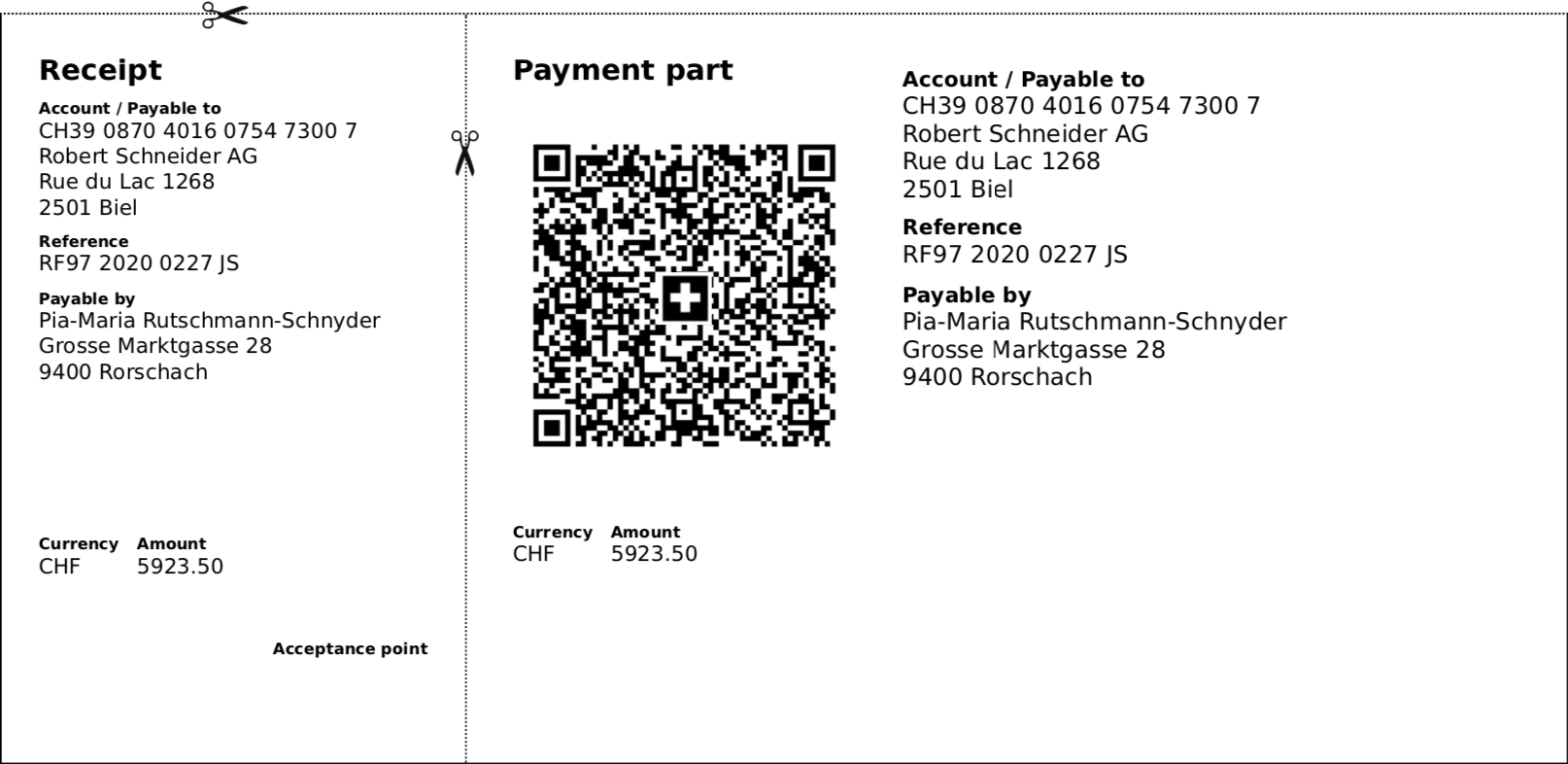
Swiss QR-bill example, produced with JustOn
Implementation Details
The implementation in JustOn Billing & Invoice Management adheres to the Swiss Implementation Guidelines QR-bill, version 2.1, and validates against the QR-bill validator.
Note
The Swiss QR code implementation differs from the general SEPA credit transfer QR code approach.
Be aware of the following specifics:
-
JustOn supports both
-
Regular IBANs and, therefore, the Creditor Reference according to the ISO 11649 standard (SCOR)
JustOn creates the ISO 11649 reference (also referred to as structured remittance information) based on the invoice number.
-
QR-IBAN with a QR reference (QRR)
If set up accordingly, JustOn generates a 27-digit QRR reference and embeds it in the Swiss QR code instead of the IBAN/SCOR combination. For details, see Using QR-IBAN.
-
-
For the payment reference, JustOn uses the invoice number (
Invoice.Name) to create the ISO 11649 reference when theAdd QR Codefield on the related template is set toSwiss QR Code(see Configuring QR Code Template). The reference is written to the Invoice fieldPayment Referenceon invoice finalization, overwriting any existing value. The payment reference is part of the data to be encoded in the QR code.If the invoice number contains more than 21 characters, JustOn Billing & Invoice Management uses a hash algorithm to convert the number, creating a suitable, unique payment reference.
-
JustOn requires the complete address information for both the business entity and the invoice recipient (billing address). Blank fields for sender or recipient produce errors.
- JustOn does currently not support the QR-bill fields
Billing informationandAlternative procedures.
For the QR code invoice to work, JustOn requires the following data specified on the business entity and the invoice:
| Object | Required Field |
|---|---|
| Business Entity | IBAN|QR-IBAN Company Street Postal Code City Country Code |
| Invoice | Account Name Billing Street Billing Postal Code Billing City Billing Country Code |
The two country codes have different origins. Country Code on the business entity is maintained by hand, while Billing Country Code on the invoice is copied from the account and exists only if the Salesforce State and Country/Territory Picklists are enabled and configured. Without the picklists, the field stays empty without notice, and the QR code is not produced.
Once set up accordingly, JustOn prints the QR-code payment slip on a new page at the end of the invoice PDF.
Info
If your org integrates JustOn Cash Management and you use payment matching for automatic settlements, make sure to create a dedicated matching configuration to resolve the ISO 11649 payment reference.
Configuring QR Code Template
The PDF generation for QR code invoices relies on the JustOn PDF service, which requires a Liquid template.
- Create a new template, clone an existing template, or open an existing template.
- In the Layout & Design section, click
next to the
PDF Rendererfield and specify the valuev2. -
Attach the required Liquid template files.
In the Notes & Attachments area, click to open the action menu, select Upload Files, then proceed as prompted.
You can use the following Liquid templates as a starting point:
Swiss QR Code Invoice Template (English)
Swiss QR Code Invoice Template (German)This operation requires the custom
Typefield (ONB2__Type__c) to be available on the page layout of the Content Version object. For details about adding fields to page layouts, see Modifying Page Layouts or Search Layouts.Make sure to set the
Typeof the uploaded files toLiquid Template. The picklist valueLiquid Templatemay not be available in your org. In this case, add it to the value picklist for theTypefield of the Content Version object. For details, see Modifying Picklist Values. -
In the
Add QR Codefield, selectSwiss QR Code.This operation requires the custom
Add QR Codefield (ONB2__AddQRCode__c) to be available on the page layout of the Template object. For details about adding fields to page layouts, see Modifying Page Layouts or Search Layouts. -
In the Layout & Design section, click next to the
PDF Optionsfield and specify options for the PDF output as required.The field value is in JSON notation and sets optional properties for the
decimal,currencyandpercentLiquid filters.Property Description localeSets the language code. currencyDisplayDefines the currency display format. Possible values include symbol,code,name.useDigitGroupingToggles the digit group separator. Possible values include trueorfalse.minimumFractionDigitsSets the minimum number (Integer) of decimal places. maximumFractionDigitsSets the maximum number (Integer) of decimal places. JustOn recommends to set at least the
localeproperty. It defaults toen-ENif not set. -
Optionally, define a page header and footer.
In the Header & Footer section, click next to the
Page HeaderorFooterfield and specify the information as required.Page header, footer and page counters must be addressed using specific CSS classes. You may use the following code as a starting point for your customization:
-
Page header
<div class="page-header" style="width:90%; text-align:center; font-size:10pt;"></div> -
Footer
<div class="page-footer" style="width:90%; text-align:center; font-size:10pt;">
    Page <span class="pageNumber"></span> of <span class="totalPages"></span>
</div>
-
-
Click Save to apply your template customization.
You can now apply this template to invoices with recipients in Switzerland. When generating the PDF file, the QR-code payment slip will be printed accordingly.
Note
Do not change the CSS or HTML sections for the payment slip. Otherwise, your invoice template may no longer comply with the standard.
Using QR-IBAN
As an alternative to regular IBANs with an ISO 11649 reference (SCOR), JustOn Billing & Invoice Management supports Swiss QR-IBANs with a QR reference (QRR). A QR-IBAN uses a dedicated bank identification (IID) in the range 30000–31999. Unlike a regular IBAN, it makes the payment reference a mandatory field in the payer's e-banking, which enables fully automatic payment matching. For details, see Swiss QR-bill.
To use a QR-IBAN, you specify it in the QR-IBAN field on the business entity.
Be aware of the following specifics:
- If the
QR-IBANfield is set, JustOn Billing & Invoice Management generates a QRR reference – a 27-digit numeric reference including a check digit – based on the invoice number on invoice finalization, instead of the ISO 11649 reference. As with the ISO 11649 reference, JustOn writes the value to the Invoice fieldPayment Reference, and encodes it in the QR code. The QR code then uses the QR-IBAN and the reference typeQRR. - If the
QR-IBANfield is empty, the software uses the regular IBAN and the ISO 11649 reference as before. -
The regular
IBANfield remains required and is used to specify the bank account number. TheQR-IBANis an additional, optional field.The
QR-IBANmust be a valid Swiss QR-IBAN (IID range 30000–31999). An invalid value produces an error when the invoice PDF is rendered.
A QRR reference is grouped differently than an ISO 11649 reference, and JustOn provides a dedicated template field for each. This is why invoice templates that include the Swiss QR payment slip must be updated to display the correct reference for each type:
- Navigate to the relevant template record.
-
In the attached Liquid template file for invoices (most likely, Invoice template.liquid), replace the reference output wherever the payment reference is displayed.
Use the following code:
{% if QrCode.structuredData.reference.type == 'QRR' %}
    {{ QrCode.structuredData.reference.printQrr }}
{% else %}
    {{ QrCode.structuredData.reference.printIso11649 }}
{% endif %}
Info
If you do not update the template, invoices that use a QR-IBAN will not display the payment reference in the payment slip text. The reference encoded in the QR code itself will always be correct, however, regardless of the template.
Related information: