Using JustOn SCHUFA Inquiries
To request credit rating information on your business partners, JustOn SCHUFA Inquiries links your Salesforce customer data (leads, accounts, contacts or opportunities) with company or consumer data records at SCHUFA. You can then retrieve reports with different levels of detail and receive continuous updates.
- Requesting credit inquiry
- Ordering monitoring service
- Viewing credit inquiry
- Retrieving master data of corporate customers
Info
After the installation and for testing purposes, JustOn SCHUFA Inquiries uses a test access.

To switch to productive operation, your company must enter into a contract with SCHUFA and then, using your company-specific credentials, create a new named credential.
- Schufa ID
-
Before you can retrieve credit rating information on your business partners, your customer data in Salesforce must be linked with SCHUFA. In business with corporate customers (B2B context), this step is part of retrieving the first credit inquiry for new (or not yet associated) Salesforce records. With the link, the Salesforce records receive an identifier – the
Schufa ID–, which uniquely associates them with the SCHUFA company data records.If you have received the SCHUFA identifiers in advance and imported them to Salesforce, set up a flow that retrieves the credit inquiries for records with an existing Schufa ID.
- Data association
- Depending on your requirements, you can establish the SCHUFA link with leads, accounts, contacts, opportunities or custom objects.
Requesting Credit Inquiry
To order a credit inquiry for a Salesforce record:
- Open the relevant record (lead, account, contact, opportunity or custom object).
-
Click Schufa Inquiry.
This opens the Schufa wizard in inquiry order mode.
-
In the
Inquiry Typefield, select the desired inquiry type.For business with corporate customers (B2B context), the following options are available in the drop-down list on lead, account, contact, opportunity or on the custom object:
Short Inquiryfor ordering a SCHUFA Short InquiryDirect Short Inquiryfor ordering a SCHUFA Direct Short Inquiry (without PDF document)Compact Inquiryfor ordering a SCHUFA Compact InquiryFull Inquiryfor ordering a SCHUFA Full Inquiry
For more information on the SCHUFA products, see B2B and B2C credit rating information on the SCHUFA website.
For business with consumers (B2C context), the option
Consumer Inquiryfor ordering a SCHUFA Consumer Inquiry is available on lead, person account, contact or opportunity.The SCHUFA API does not currently support providing a PDF document for the consumer inquiry, but this is planned for a future API version.
For more information on the SCHUFA products, see B2B and B2C credit rating information on the SCHUFA website.
-
In the
Legitimate Interestfield, select the reason for the inquiry.For business with corporate customers (B2B context), various options are available in the drop-down list, depending on the configuration (see Setting Legitimate Interests). Generally possible are the following:
Ownership StructureCredit CheckReceivableInitial Business ContactCredit DecisionOverdue ClaimInsurance ContractEnforcement Information
For business with consumers (B2C context), various feature codes are available for the
Consumer Inquiry, depending on the configuration (see Configuring Feature Codes). For example, the following options may be available for the industryMail Order:Collection requestInquiry about existing contractual relationshipsInquiry about freelancersInquiry about contractual relationships with freelancersInquiry about the self-employed/small tradersInquiry about contractual relationships with the self-employed/small tradersInquiry from the mail order company for delivery or service
-
Unless you want to order the SCHUFA monitoring service, leave the option
Noselected under Monitoring.
-
Click Order.
This starts a process that collects all relevant data at SCHUFA and – for SCHUFA Short Inquiry, SCHUFA Compact Inquiry and SCHUFA Full Inquiry – prepares a result document as PDF.

For a new (or not yet associated) Salesforce record, the Schufa wizard first opens in company search mode. Name and billing address are prefilled – if available on the lead or the (linked) account.

-
Adjust the search parameters if necessary.
This does not affect the data in the Salesforce record.
-
Select
Exact SearchorSoft Search, depending on your requirements.- Exact Search
-
With this setting, the result of the company search is to match your search parameters exactly. All criteria are included as specified.
Note that this search may return no results in case of typing errors or poor data quality. In this case, use the soft search.
- Soft Search
-
With this setting, the search does not look for the exact string, but for similar ones. This search can return results even with input errors or imprecise data.
Note that the soft search does not include the legal form and the street of the company address.
-
Click Search.
This displays a list of matching SCHUFA company data records, with the most likely match on top and preselected. If the matching record is not among them, you can click Back to return to the search dialog and refine the search.

If you have filled in the fields
Owner First NameandOwner Last Name, the search is extended to the SCHUFA person database in case no match could be found in the SCHUFA company data records. -
Select the desired company data record in the result list.
-
Click Accept.
This starts a process that collects all relevant data at SCHUFA and prepares a result document. At the same time, the Schufa ID is taken over into the Salesforce record and is available for obtaining credit rating information in the future.
For a
Consumer Inquiryin business with consumers, all fields defined for B2C inquiries must be filled in on the respective lead, person account, contact or opportunity record (first name, last name, birth date, gender, street, city, zip code, country).The fields are associated in the Schufa Inquiry Config dialog.
-
-
Click Import.
This creates a new inquiry record for the Salesforce record.

To view the new inquiry record, you may need to refresh the page.
Info
Errors can occur when communicating with the SCHUFA API. The Schufa wizard displays the generated error messages. These messages include hints at possible solutions and error codes. Contact your system administrator and pass on the error codes.
Ordering Monitoring Service
For inquiries in business with corporate customers (B2B context), JustOn SCHUFA Inquiries can include the SCHUFA monitoring service. If the corresponding monitoring process is set up for automatic execution, this lets you regularly retrieve updates of credit rating information.
You can order the monitoring service as an additional option with a new credit inquiry.
- Open the relevant record (lead, account, contact or opportunity).
- Click Schufa Inquiry.
-
In the
Inquiry Typefield, select the desired inquiry type, and in theLegitimate Interestfield, select the reason for the inquiry.For details on the options, see Requesting Credit Inquiry.
-
Under Monitoring, select the option
Yes.
-
Under Monitoring Period, select whether the monitoring service is to run without limit or with an end date.
Specify an end date if necessary.
-
Click Order.
-
Click Import.
This creates an inquiry record of the selected type with additional monitoring service for the Salesforce record.
If the corresponding monitoring process is running and SCHUFA has new data for your customer, a new inquiry record is created automatically and associated with the record.
The new inquiry record has the property Newest Inquiry and refers to the preceding inquiry record via Previous Inquiry.

If required, this lets you analyze changes using formula fields or other processes, for example, to closely monitor the credit rating history of a business partner.
Error when retrieving data?
With the monitoring service enabled, JustOn SCHUFA Inquiries tries several times to retrieve new data from SCHUFA (see Setting Default Monitoring Options). If this fails, the request remains open. Users can then fetch the data manually on the respective record or cancel the request.
To repeat the request:
-
Click next to the Order button and select Get updates.

To cancel the request:
- Click Cancel.
Viewing Credit Inquiry
To view a credit inquiry for a customer:
-
Open the relevant record (lead, account, contact or opportunity).
The detail page displays the latest credit inquiries on the right, in the Schufa Inquiries related list.

-
Click the name of the desired inquiry record.
This displays the detail page of the inquiry record. The PDF document created with the SCHUFA request, if any, is linked as a file record.

What do the values in a SCHUFA report mean?
Besides some master data, the credit rating index and the possible default rate are the most important details of the SCHUFA report. They are derived from various key figures, including equity, liquidity, revenue and payment behavior. In addition, the insolvency status displays information on insolvency proceedings, if any.
- Credit rating index
-
The credit rating index, or score, as a measure for assessing a company's ability to pay, is a number of "points" between 100 and 600, where a lower value means a good and a higher value a poor credit rating (see Credit Rating Index).

- Default rate
-
The default rate, or risk, expresses the probability (in percent) of a loss in a business relationship with a company.

Score and risk do not necessarily move in sync – a company may still have a higher default risk despite a good score.
- Insolvency status
-
The insolvency status indicates whether insolvency proceedings have been opened and which phase they are in. JustOn SCHUFA Inquiries retrieves the insolvency status with inquiries of the type
Compact Inquiry,Direct Short InquiryandFull Inquiryin business with corporate customers (B2B context), and uses a numeric code to display it:Status code Meaning 1 Opening proceedings applied for 2 Opening proceedings revoked 3 Insolvency opened 4 Insolvency discontinued/revoked 5 Announcement of discharge of residual debt 6 Discharge of residual debt granted 7 Discharge of residual debt denied/revoked
Retrieving Master Data of Corporate Customers
In business with corporate customers (B2B context), JustOn SCHUFA Inquiries can match Salesforce customer records (lead or account) with the master data stored at SCHUFA (name, address, contact data if available). This lets you enrich or update your customer data with new information.
- Open the relevant record (lead or account).
-
Click to open the action menu, and select Get Schufa Data.

-
Click Order.
This compiles the relevant company information.
-
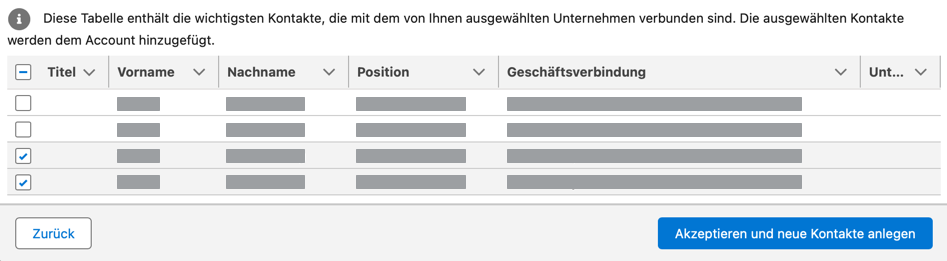
Optionally select contacts to be associated with the lead or account, and click Accept and create new Contact.
-
Click Import.

This adds or updates the company information in the Salesforce record and creates new related contacts if applicable.