Sending E-Invoices
To support enterprise and public e-invoicing, JustOn Billing & Invoice Management can create electronic invoice files for invoices and credits. Currently, it supports the following formats:
- Peppol BIS Billing (with UBL syntax) for electronic invoicing across Europe
- XRechnung (with UBL syntax) for electronic invoicing within Germany
- Active Avalara ELR country mandates (with UBL syntax) for electronic invoicing worldwide
You can send e-invoice XML files to the Peppol Network or Avalara E-Invoicing and Live Reporting (ELR), from where the e-invoices will be distributed to their recipients. This feature requires that the both the e-invoice creation and the Peppol or Avalara ELR integration are properly set up. In addition, the list view button Send E-Invoices or the record page action Send E-Invoice are available. For details, see Enabling E-Invoice Creation.
Note
The actions Send E-Invoice and Send E-Invoices apply to the distribution channels Peppol and Avalara only – with the distribution channel Email, they fail with an error.
E-invoices with the distribution channel Email are distributed as an attachment to the invoice email instead. This requires the content version type E-Invoice to be specified in the invoice field Email File Types, see Setting E-Invoice XML as Email Attachment and Emailing Invoices.
Note
Ask your customers for their e-invoice recipient address and scheme before sending e-invoices to Peppol. Make sure to have the appropriate values set in the invoice fields E-Invoice Recipient Address and E-Invoice Recipient Scheme Id.
You can use the Peppol Directory to search participating organizations by name, address, ID or combinations thereof.
Sending Multiple E-Invoices
To send multiple e-invoices via Peppol or Avalara ELR:
- Open the Invoices tab.
-
Filter the list view or select the invoices to be processed.
Continuing without selection includes all listed invoices.
Make sure the invoices meet the required conditions.
-
Click to open the action menu, then select Send E-Invoices.
This displays the number of invoices to be processed.
-
Optionally, enable Create Missing E-Invoices.
This will run the e-invoice creation for all invoices without existing e-invoice XML file.
-
Click Next.
This starts the e-invoice transfer to the Peppol Network or Avalara ELR for distribution. The page shows the job progress and log messages.
Even in case of an error, the job may still complete. To be sure of the e-invoice transfer, review the
E-Invoice Errorfield of the processed invoices, or create a report to show the result.Clicking Finish returns you to the Invoices tab.
Sending Single E-Invoice
To send a single e-invoice via Peppol or Avalara ELR:
-
Open the invoice that you want to distribute via Peppol or Avalara ELR.
Make sure the invoice meets the required conditions.
-
Click to open the action menu, then select Send E-Invoice.
This launches a screen flow that triggers the distribution.
If there is no e-invoice XML file yet (
E-Invoice StatusisNot created), JustOn Billing & Invoice Management prompts you to create it. Doing so creates the e-invoice XML file, validates it, and attaches it to the current invoice record. -
If necessary, modify or set the distribution-relevant data.
The required information includes the recipient address and address scheme, the distribution channel and the e-invoice format.
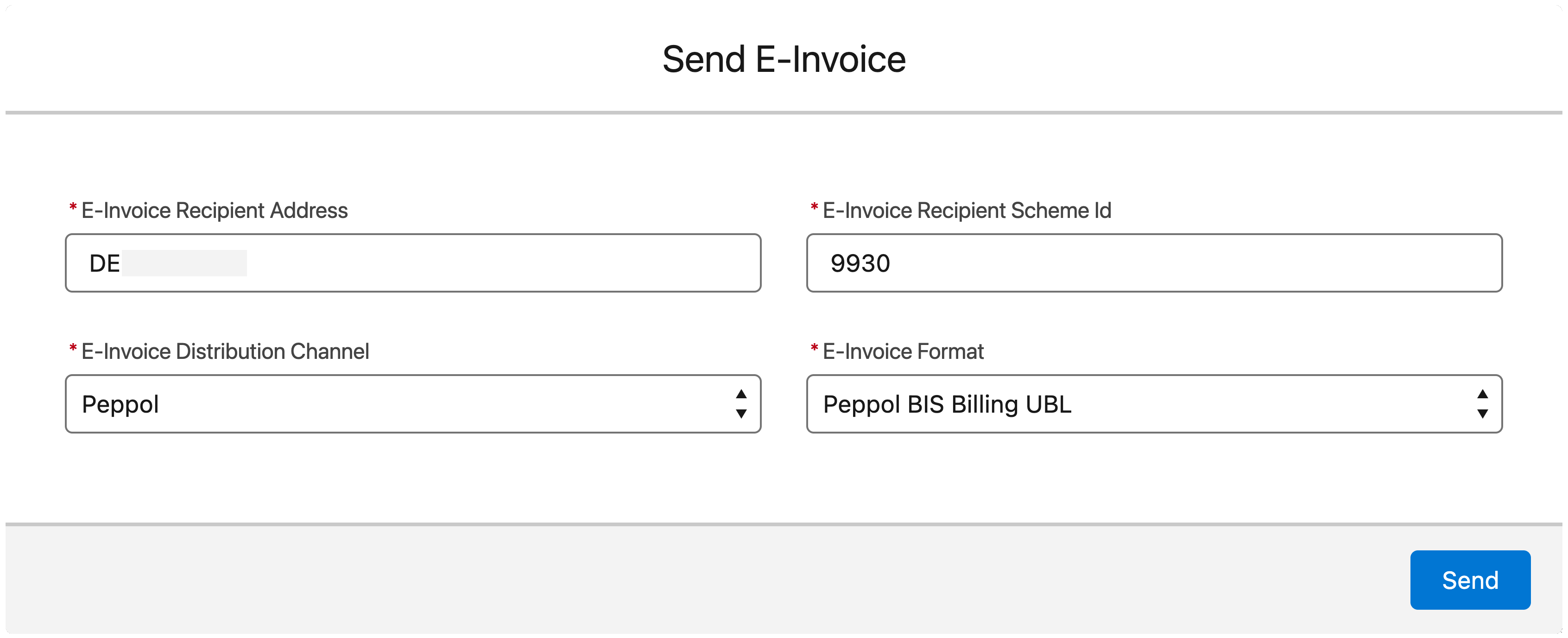
Sending individual e-invoiceDistribution channel and format dependencies
Be aware that the e-invoice distribution channel and e-invoice format depend on each other.
Distribution Channel Supported Formats EmailPeppol BIS Billing UBLXRechnung UBLZUGFeRDPeppolPeppol BIS Billing UBLXRechnung UBLAvalaraactive Avalara ELR country mandates The distribution channel
Emaildoes not work with this action. Selecting it makes the operation fail with an error. E-invoices with this distribution channel are distributed as an attachment to the invoice email, see Emailing Invoices. -
Click Send to confirm and complete the operation.
This transfers the e-invoice to the Peppol Network or Avalara ELR for distribution.
Clicking Finish closes the screen flow.