Transferring Accounting Documents to DATEV Unternehmen online
You have created accounting documents from booking details or expenses and checked them. Now you can transfer the accounting documents to DATEV Unternehmen online.
For the transfer to DATEV, the data is grouped by accounting month and accounting document type. A data transfer bundles all accounting document items of one accounting month and one accounting document type that are not yet assigned to a data transfer. Accounting document items of different accounting documents of the same accounting document type (purchase invoice, sales invoice or cash book) with the same accounting month (for example, January 2025) are transferred to DATEV in one data transfer. A finer split is not possible: for example, you cannot transfer a single accounting document item if, within the same accounting month, there are several accounting document items of the same type that have not yet been transferred to DATEV.
Data transfer to DATEV: Procedure steps
Once the data transfer to DATEV is set up, actually transferring the data from JustOn to DATEV Unternehmen online involves the following repetitive tasks:
-
Transferring Bookkeeping Data to DATEV
Be aware that generating the DATEV-specific data records may take time – for 1000 booking details, allow about one hour.
-
Transferring Accounting Documents to DATEV Unternehmen online
Be aware that uploading the accounting documents to DATEV may take time. Depending on the amount of data you transfer, the access token may expire. In this case, restart the data transfer.

Transferring bookkeeping data to DATEV
Note
The direct data transfer to DATEV requires JustOn Connector for DATEV to be installed and set up in your Salesforce org. For details, see JustOn Connector for DATEV: Feature Overview and Enabling Data Transfer to DATEV.
Users who create, retransfer or delete data transfers require the permission profile User with write and transfer permission (see Permission Profiles and Permission Sets). In addition, they must be enabled in DATEV Unternehmen online for the function "Digitale Belege archivieren, bearbeiten und für Buchführung bereitstellen" (see Rechtevorlagen für DATEV Unternehmen online).
On the Data Transfers tab, you can transfer the accounting documents to DATEV Unternehmen online.
- Click to open the App Launcher, and select JustOn Connector for DATEV.
- Open the Data Transfers tab.
-
Click New.
You can create a new data transfer only when no other data transfer is running in your org.
-
Log in to DATEV.
This step is skipped if you are already authenticated in JustOn Connector for DATEV in the current browser session.
- Select your authentication medium.
- Grant the permission to access DATEV Unternehmen online.
Using single sign-on (SSO) solutions may cause problems with the DATEV login. If you have questions about this, contact JustOn Support.
-
Select the client for the data transfer and click Continue.

-
Specify the account length and click Continue.
This step is skipped if the account length is stored in the client settings.
-
Select the accounting month and the accounting document type for the data transfer and click Continue.

Accounting months that contain accounting documents not yet transferred are marked with a black star. The list of accounting document types includes only the types for which accounting documents not yet transferred exist for the selected year and accounting month. The number of accounting documents not yet transferred is shown in parentheses next to the respective accounting document type.
-
Specify the target folder at DATEV.
This step is skipped if a target folder for the selected accounting document type is stored in the client settings.

You can choose from the invoice folders (for purchase and sales invoices) or cash books (for cash documents) that are set up in DATEV Unternehmen online. You can save the selected target folder as the default for future data transfers. It is then stored in the client settings, where you can also change or remove it again.
-
Click Continue.
This starts the data transfer to DATEV Unternehmen online.
-
Click Refresh Status, then click Confirm.
A data transfer always remains in the status that was last actively retrieved – after the start, this is
Open. Refresh the status of the data transfer manually until the DATEV status showsFinished.In the details of the data transfer, you can see all transferred accounting document items in the Accounting Document Items section and all transferred document images in the Notes & Attachments section.
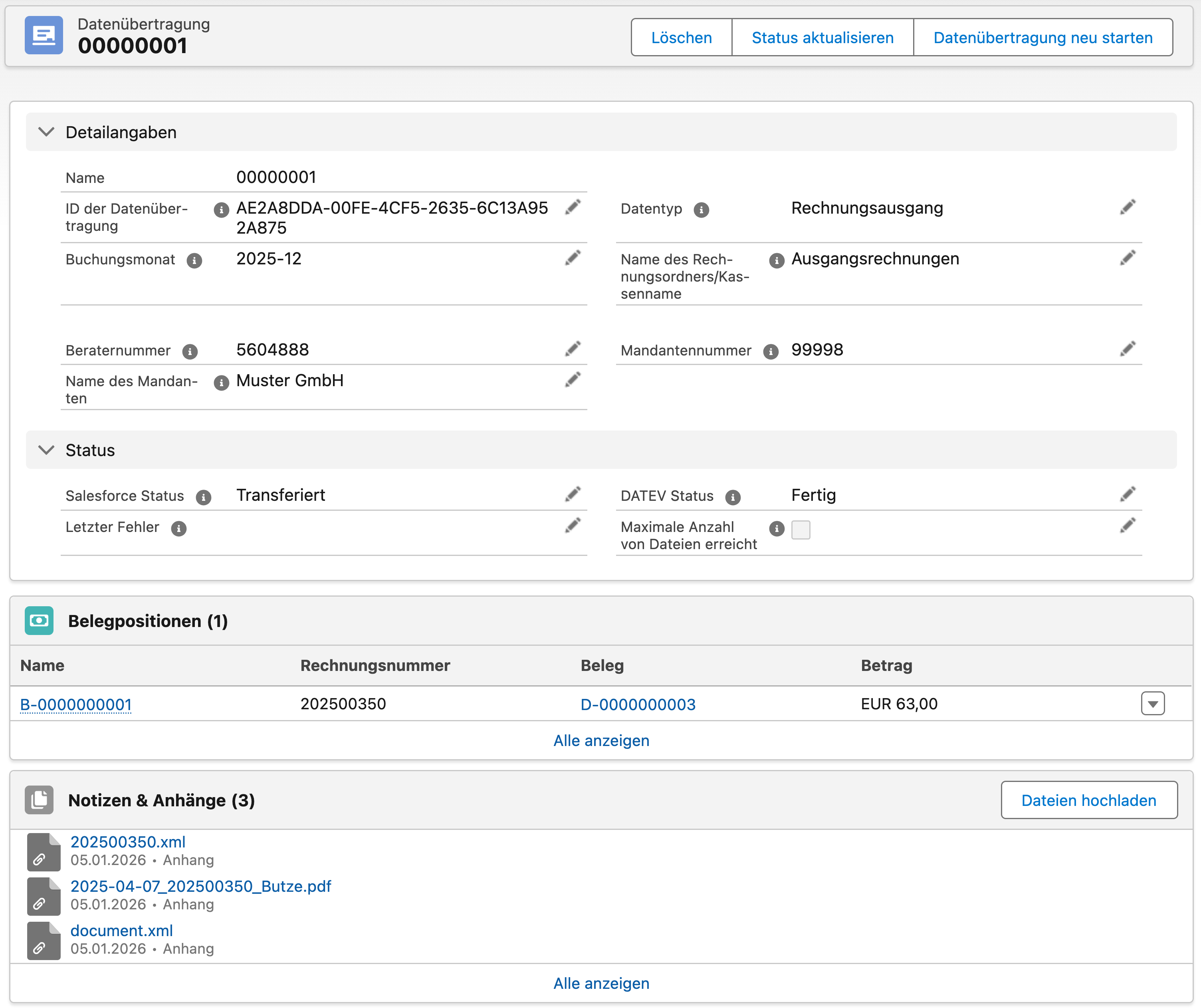
For details, see Data Transfer.
Info
Using Refresh Status and then View Protocol, you retrieve the DATEV protocol information on the data transfer, for example, the exact time of the transfer, the order of the transferred data and the transferred files. A maximum of 1,000 protocol lines is displayed.
DATEV provides the status and the protocol only temporarily (for about two months). After that – or if you or your tax advisor delete the protocol in DATEV Unternehmen online – they can no longer be retrieved (HTTP error 404). The DATEV status retrieved last and, if applicable, the last error message remain permanently stored on the data transfer.
Possible statuses of the data transfer
| Salesforce status | DATEV status | Meaning |
|---|---|---|
| New | Open | A data transfer has been newly created. |
| Preparing Ready For Transfer In Transfer |
Open | Data is being processed in JustOn Connector for DATEV in Salesforce. Refresh the status. |
| Closed | Open In Progress |
Data is being processed in DATEV Unternehmen online. Refresh the status. |
| Closed | Finished | The data transfer and the processing in DATEV Unternehmen online were successful. |
| Closed | Aborted Needs Checking |
The processing in the applications in DATEV Unternehmen online failed. Check the error messages. If some accounting documents of a failed data transfer were already processed successfully, clarify the further procedure with your tax advisor. |
| Closed | Successfully Canceled | The user successfully canceled the processing in DATEV Unternehmen online. The accounting documents and the processed data in the applications in DATEV Unternehmen online have been removed. |
| Closed | Canceled with Error | The user's cancellation of the processing in DATEV Unternehmen online was not successful. The accounting documents and the processed data in the applications in DATEV Unternehmen online could not be removed. |
Info
Due to transfer errors, a data transfer may fail (DATEV status Aborted). Depending on the status and the processing state, you can transfer the data again.
- Open the detail view of the data transfer.
- Click Restart Transfer.
If the retransfer is not possible, contact JustOn Support and create a corresponding ticket in the Support Portal.