Scheduling Invoice Run
You can schedule the invoice run to have invoices created automatically on a regular basis.
Parameterized Invoice Run
The scheduled invoice run may require additional options. To this end, you can set up the invoice run to be executed with additional parameters.
The following parameters are available:
| Parameter | Possible Values | Description | Example Values |
|---|---|---|---|
| Interval | x(d|w|m) |
Specifies the invoice run period, where x is a positive or negative integer, d=day, w=week, m=month.Defaults to 1m. |
2w |
x-y |
x and y are positive integers (1 .. 31), where x-y specifies a day range for a month. If x>y, then x is considered a day of the previous month.The execution date determines which month is used as the base: if the execution day is before x, the system automatically shifts back one month. See the warning below. |
1-15 |
|
| Alignment | previous, current or next |
Used to describe the Interval position relative to the execution time.Interval = 1m and Alignment = next means that the invoice run period is the next month.Interval = -3m (negative value) and Alignment = current means that the invoice run period is the current and the last two months.Interval = 1w and Alignment = previous means that the invoice run period is the previous week.If not set, defaults to previous. |
next |
| ShiftDays | x |
Usually, the time period calculation is based on the current date. This integer specifies a number of days by which the "anchor date" is to be moved backward or forward. | -5 |
| StartOfWeek | 1 .. 7 |
Specifies the start day of the week, with 1 = Monday ... 7 = Sunday. Defaults to 1 if left empty. |
1 |
| InvoiceDate | (start|end)(+|-)x |
Specifies the invoice date based on the start date or end date of the invoice run, where x is a number of days. |
end-5 |
| InvoiceRunFilter | <string> |
Specifies the name of a filter to be applied as taken from the custom setting Filters | <filter name> |
| GenericFilters | <string> |
Specifies the names of the generic invoice run filters to be applied as taken from the custom setting Filters (comma-separated list) | <filter name list> |
| TransactionFilters | <string> |
Specifies the names of the transaction filters to be applied as taken from the custom setting Filters (comma-separated list) | <filter name list> |
| OpportunityInvoiceRunFilter | <string> |
Specifies the name of a opportunity filter to be applied as taken from the custom setting Filters | <filter name> |
Execution date and day-range intervals
When using a day-range interval (Interval = x-y), the execution date of the scheduled job significantly affects the resulting period.
The system first determines the current interval based on the execution date:
- If the execution day is within the range (
x<= day <=y), the current month is used as the base. - If the execution day is before the start of the range (day <
x), the system shifts back one month to find the most recent matching interval.
This implicit shift happens before the Alignment parameter is applied. Combining a day-range interval with Alignment = previous can therefore cause a double shift, producing an unexpected date range.
Interval = 16-31, job scheduled to run at the beginning of each month, for example, the 3rd:
| Execution Date | Base Period (implicit) |
Alignmentprevious |
current |
|---|---|---|---|
| Dec 3 (day < 16) | Nov 16–30 (shifted) | Oct 16–31 | Nov 16–30 |
| Dec 18 (day >= 16) | Dec 16–31 (no shift) | Nov 16–30 | Dec 16–31 |
If the scheduled job runs outside the day range (for example, on the 1st–15th for an interval of 16-31), use Alignment = current to avoid the double shift. If the job runs within the day range, Alignment = previous works as expected.
Info
If the calculated period and the specified filters of a scheduled invoice run belong to an existing invoice run (irrespective of whether created manually or via the scheduled job), JustOn Billing & Invoice Management adds any new invoices to the existing invoice run instead of creating a new one.
Setting up a parameterized invoice run involves two steps:
Configuring Batch Chain Parameters
-
Click to enter Setup, then open Custom Settings.
In Salesforce Lightning, navigate to Custom Code > Custom Settings.
In Salesforce Classic, navigate to Develop > Custom Settings.
-
Click Manage in the row of Batch Parameters.
- Click New.
-
Specify the details as required.
- Name: Must match the
Job Nameto be set when scheduling the job - Batch Chain:
InvoiceRunChain - Parameter 1..8: Define batch chain-specific execution options using the syntax
parameter = value, for example,Interval = 2worAlignment = next
- Name: Must match the
-
Click Save.
InvoiceRunChain parameters examples
Create invoices for the past two weeks:
| Field | Value | Description |
|---|---|---|
| Name | ir_schedule_1 |
Must match the Job Name to be set when scheduling the job |
| Batch Chain | InvoiceRunChain |
|
| Parameter 1 | Interval = 2w |
Sets the invoice run period to two weeks With the default alignment setting ( Alignment = previous), the invoice run period is the past two weeks. |
| Parameter 2 | InvoiceDate = end-1 |
Sets the invoice date to the penultimate day of the invoice run period |
| Parameter 3 | InvoiceRunFilter = MySubscriptions |
Sets the invoice run filter to MySubscriptions, which must be defined in Filters |
| Parameter 4 | TransactionFilters = Cases,Orders |
Sets the transaction filters to Cases and Orders, which must be defined in Filters |
Create invoices for the next month one week before it starts:
| Field | Value | Description |
|---|---|---|
| Name | ir_schedule_2 |
Must match the Job Name to be set when scheduling the job |
| Batch Chain | InvoiceRunChain |
|
| Parameter 1 | Alignment = current |
Sets the invoice run period to the current interval period With the default interval setting ( Interval = 1m), the invoice run period is the current month. |
| Parameter 2 | ShiftDays = 7 |
Moves the time period calculation seven days forward (so that current actually starts one week earlier) |
| Parameter 3 | InvoiceRunFilter = MySubscriptions |
Sets the invoice run filter to MySubscriptions, which must be defined in Filters |
InvoiceRunChain day-range interval example
Create invoices for the second half of the month (days 16–31), with the job running in the first half of the following month:
| Field | Value | Description |
|---|---|---|
| Name | ir_schedule_halfmonth |
Must match the Job Name to be set when scheduling the job |
| Batch Chain | InvoiceRunChain |
|
| Parameter 1 | Interval = 16-31 |
Sets the invoice run period to days 16 through 31 of a month |
| Parameter 2 | Alignment = current |
Uses the base period as-is, without additional shift |
| Parameter 3 | GenericFilters = Rechnung |
Sets the generic filter |
| Parameter 4 | InvoiceDate = end-0 |
Sets the invoice date to the last day of the invoice run period |
Scheduling Batch Chain
To schedule the batch chain, you can use either JustOn's Scheduled Jobs page or Salesforce's Schedule Apex functionality. For details, see Scheduling a Job.
Via JustOn's Scheduled Jobs page:
-
Open the Scheduled Jobs page.
Use the following URL
https://login.salesforce.com/apex/ONB2__JobsSetup, or, if you are already logged in, appendapex/ONB2__JobsSetupto your org's domain name.You can access the Scheduled Jobs page via the JustOn configuration app ( > JustOn Configuration > Jobs Setup).
-
From the
Apex Jobdrop-down list, selectBatch Chain Job. - In the
Job Namefield, specify the name of the batch parameters setting created before. -
From the
Start Timedrop-down list, select the preferred execution time.Your business may require to schedule multiple invoice runs. In order to prevent concurrent access to records or batch job limitations, they should, however, not run in parallel. Therefore, JustOn recommends to involve a certain time delay between the scheduled invoice runs – for example, one at 00:00, the next at 01:00, and so on. The interval may vary depending on the amount of records to be processed.
-
Click Schedule.
This sets up the invoice run to be executed on a regular basis at the specified time with the additional parameters set.
Info
From the Scheduled Jobs page, you can also run the batch chain immediately.
Via Salesforce's Schedule Apex functionality:
-
Click to enter Setup, then open Apex Classes.
In Salesforce Lightning, navigate to Custom Code > Apex Classes.
In Salesforce Classic, navigate to Develop > Apex Classes.
-
Click Schedule Apex on top of the list.
-
Specify the details as required.
- Job Name: The name of the batch parameters setting created before
- Apex Class:
ScheduledBatchChain - Frequency
- Start
- End
- Preferred Start Time
Your business may require to schedule multiple invoice runs. In order to prevent concurrent access to records or batch job limitations, they should, however, not run in parallel. Therefore, JustOn recommends to involve a certain time delay between the scheduled invoice runs – for example, one at 00:00, the next at 01:00, and so on. The interval may vary depending on the amount of records to be processed.
-
Click Save.
This sets up the invoice run to be executed on a regular basis at the specified time with the additional parameters set.
For more details about job scheduling, see Scheduling a Job in the JustOn documentation and Schedule Apex in the Salesforce Help.
Monthly Invoice Run
You can schedule the invoice run to have invoices created automatically once a month. To do so:
-
Click to enter Setup, then open Apex Classes.
In Salesforce Lightning, navigate to Custom Code > Apex Classes.
In Salesforce Classic, navigate to Develop > Apex Classes.
-
Click Schedule Apex on top of the list.
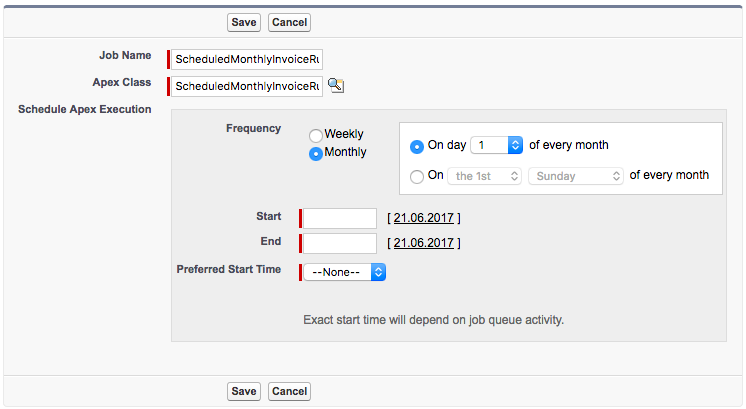
Scheduling the invoice run -
Specify the details as required.
- Job Name
- Apex Class:
ScheduledMonthlyInvoiceRun - Frequency:
Monthlywith an according day of month setting - Start
- End
- Preferred Start Time
-
Click Save.
This sets up the invoice run to be executed on a regular basis at the specified time.
For the invoice run parameters, the following values are applied by default:
| Invoice Run Parameter | Value |
|---|---|
| Start Date | Sets the first day of the month before the invoice run has been executed |
| End Date | Sets the last day of the month before the invoice run has been executed |
| Invoice Date | If empty, sets the date of the invoice run execution |
For more details about job scheduling, see Scheduling a Job in the JustOn documentation and Schedule Apex in the Salesforce Help.