Enabling Enhanced Invoice Creation
JustOn Billing & Invoice Management delivers an enhanced dialog for manually creating new (draft) invoices. It offers a guided, seamless workflow – from creating invoices and entering master data to adding invoice line items and previewing the document – without the need to switch between multiple pages.
Setting up the dialog usually involves these tasks:
- Adding the invoice build button to the Invoices list view
- Configuring the field sets for the manual invoice creation
- Optionally, removing the default New button from the Invoices list view
Adding Invoice Build Button
Your business may want to allow users to manually create invoices using the enhanced dialog from the invoice list. To this end, you add the New Invoice button to the Invoices list view:
- Navigate to the object management settings of the Invoice object (
ONB2__Invoice__c). - Click List View Button Layout.
- In the List View row, click to open the action menu, then select Edit.
-
Under Custom Buttons, move
New Invoiceto the Selected Buttons column.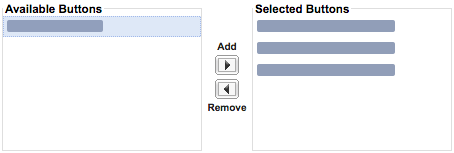
-
Click Save to save the modified page layout.
This allows users to start the enhanced invoice creation dialog from the invoice list by clicking the New Invoice button.
Configuring Field Sets for Manual Invoice Creation
For the manual invoice creation dialog, four field sets are available to customize the fields that are available in each step of the dialog:
| Step | Object | Field Set |
|---|---|---|
| Step 1 - Sender and Recipient | Invoice | Invoice Creation Parties Involved |
| Step 2 - Configuration | Invoice | Invoice Creation Configuration |
| Step 3 - Invoice Line Items | Invoice Line Item | Edit All |
| Step 4 - Invoice Header & Payment Terms | Invoice | Invoice Creation Payment Terms |
To add a field to the field set:
-
Navigate to the field sets definition of the Invoice or Invoice Line Item object.
In Salesforce Lightning, navigate to Setup > Object Manager > Object > Field Sets.
In Salesforce Classic, navigate to Setup > Create > Objects > Object > Field Sets.
-
Click Edit in the row of the relevant field set.
-
Move the fields to or from the In the Field Set container and reorder them as required.
Make sure to keep all mandatory fields in the field set.
-
Click Save.
This makes the selected fields available to users when manually creating invoices.
Removing Default New Button
If you add the New Invoice button to the Invoices list view, you may want to remove the standard Salesforce button for creating a new Invoice record from the invoice list. To do so:
- Navigate to the object management settings of the Invoice object (
ONB2__Invoice__c). - Click List View Button Layout.
- In the List View row, click to open the action menu, then select Edit.
-
Under Standard Buttons, deselect
New [New].
-
Click Save to save the modified page layout.
This removes the standard Salesforce button for creating a new Invoice record from the invoice list.