Best Practice: Setting Up an Invoice Archive
← Invoice Management Use Cases ← Setting Up Invoice Distribution
Introduction
Usually, JustOn Billing & Invoice Management stores generated PDF files or exported CSV invoices in Salesforce Files and associates them with the relevant records like invoices, accounts or opportunities.
In order to provide for a compliant and comprehensive retention of produced invoices, this may not be sufficient. Operators may be required to store issued invoices in a suitable archiving system outside Salesforce.
This article summarizes how to set up and use an invoice archive in Amazon S3. Note that archiving is also possible in other cloud storage services or in the local file system.
Solution Overview
JustOn Billing & Invoice Management can integrate with Amazon Simple Storage Service (Amazon S3) to store generated files. Keeping a single active S3 user credential, JustOn Billing & Invoice Management can access an unlimited number of buckets simultaneously.
Setting up Amazon S3 as a storage location involves:
- Creating the intended Amazon S3 buckets
- Creating a dedicated File Distribution setting for Amazon S3
- Creating Remote Sites for the Amazon S3 buckets
- Granting Amazon S3 Access for JustOn Billing & Invoice Management
Once set up, you can let JustOn Billing & Invoice Management archive invoice PDF files automatically on invoice finalization, have users manually distribute PDF files or execute (automatic) export processes for CSV invoices. For details, see Uploading Files.

Solution Details
Setting Up Amazon S3 for JustOn Billing & Invoice Management
Creating Amazon S3 Buckets
Before configuring JustOn Billing & Invoice Management to connect to Amazon S3, you must prepare the intended storage containers (buckets) in Amazon S3 first.
-
Depending on your requirements, create one or more buckets.
Proceed as described in Creating a general purpose bucket.
-
Define the permissions for uploading and accessing files.
For details, see Access control in Amazon S3.
Creating File Distribution Setting
To temporarily hold the files to be uploaded, JustOn Billing & Invoice Management needs a dedicated file distribution target.
-
Create a new File Distribution setting for each bucket.
Field Possible Values Description Backend AmazonS3Specifies the backend where the target folder is located. For using Amazon S3, the value must be AmazonS3.Name <bucket>:<region>Specifies the exact name of the target folder, for Amazon S3 buckets, this is the bucket name and the region, separated by a colon.
The bucket name and the storage folder name must match.
To find your Amazon S3 region, see AWS Regions and Endpoints.Active (checkbox) trueSpecifies whether to use this folder or not. Must be selected to enable the export. PDF Name [InvoiceNo]_[AccountName].pdfFor the InvoicePDFuse case, specifies the naming pattern used for the file name of the PDF document to be generated.
Slashes in the naming pattern are considered folders during the S3 upload, like/[AccountNo]/[InvoiceNo].pdf.Select Condition <conditionExpression>For the InvoicePDFuse case, specifies a condition expression as used in an SOQL WHERE clause to restrict the selection of PDF documents that are distributed to this target.Use Case InvoicePDFExportSpecifies the intended use case for the folder:
InvoicePDFfor distributing PDF files, default if left empty
Exportfor invoice CSV files to be exported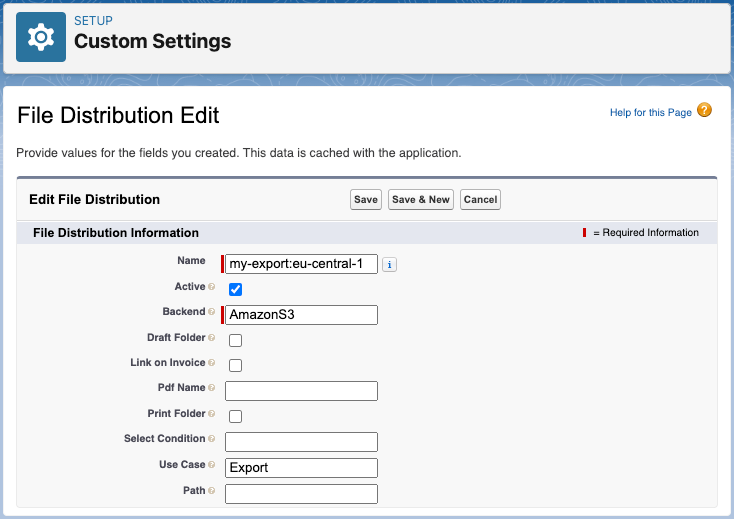
Creating a file distribution target for uploading files to Amazon S3For details, see File Distribution.
Creating Remote Sites
For each Amazon S3 bucket you intend to use with JustOn Billing & Invoice Management, you must configure a remote site in Salesforce.
-
Create a new Remote Site setting for each bucket.
Field Value Notes Remote Site Name <bucket>:<region>Descriptive name to unequivocally identify the setting Remote Site URL https://<bucket>.s3-website.<region>.amazonaws.com/Active trueFor details, see Creating Remote Sites for Amazon S3 Buckets.
Bucket names and URLs
With respect to the URLs, consider the following characteristics:
- The region is always part of the URL, except for the US East (
us-east-1) region. -
JustOn Billing & Invoice Management prefers to call out to virtual host style URLs like
https://<bucket>.s3.amazonaws.com/https://<bucket>.s3-eu-west-1.amazonaws.com/ -
If the bucket name contains full stop characters (like
foo.bar), JustOn Billing & Invoice Management falls back to path style URLs:https://s3.amazonaws.com/<bucket>https://s3-eu-west-1.amazonaws.com/<bucket>
Amazon S3 bucket remote site examples
Bucket Name Region File Distribution Setting Name Remote Site Setting URL foo US East foo:us-east-1https://foo.s3.amazonaws.com/foo.bar US East foo.bar:us-east-1https://s3.amazonaws.com/foo EU Central foo:eu-central-1https://foo.s3-eu-central-1.amazonaws.comfoo.bar EU Central foo.bar:eu-central-1https://s3-eu-central-1.amazonaws.com - The region is always part of the URL, except for the US East (
Granting Amazon S3 Access
Before JustOn Billing & Invoice Management can upload files to your Amazon S3 storage, you must grant it the corresponding access rights.
- Click and select JustOn Configuration > Manage Amazon S3.
-
Specify your AWS Access Key ID and Secret Access Key in the corresponding fields.
Find this information on the AWS security credentials page (see View AWS account identifiers).
-
Click Save.
Uploading Files
Once Amazon S3 is set up as an external storage location, there are various options to actually upload and archive files produced by JustOn Billing & Invoice Management.
- Automatic PDF upload on invoice finalization
- With an active file distribution target for Amazon S3, JustOn Billing & Invoice Management will automatically upload the produced invoice PDF files to the configured S3 bucket when finalizing invoices.
- Manual PDF file upload
-
JustOn Billing & Invoice Management provides the button Distribute PDF. Users can select records from list views and then use this button to upload the corresponding PDF files to the configured file distribution target – your Amazon S3 bucket.
For details, see Enabling PDF Redistribution and Redistributing Invoice PDF Documents.
- Export CSV invoices
-
If required, you can directly upload exported invoice CSV files to your Amazon S3 storage. To this end, you
- Create a dedicated CSV export setting, specifying the S3 file distribution setting as the export target
- Schedule the CSV export to have the export and upload executed automatically on a regular basis
- Have users manually export invoice CSV files – applying the relevant export setting, the files will be uploaded to your S3 bucket